If your school is migrating from LTI 1.1 to LTI 1.3, congratulations! You will soon have some great new functionality unlocked. Here's important information you need to know:
Returning Users
Copying your LMS course. If you already have a Norton course, you can copy it over at any time by following these steps.
- Open the upcoming term's course into which you want to add Norton digital learning tools.
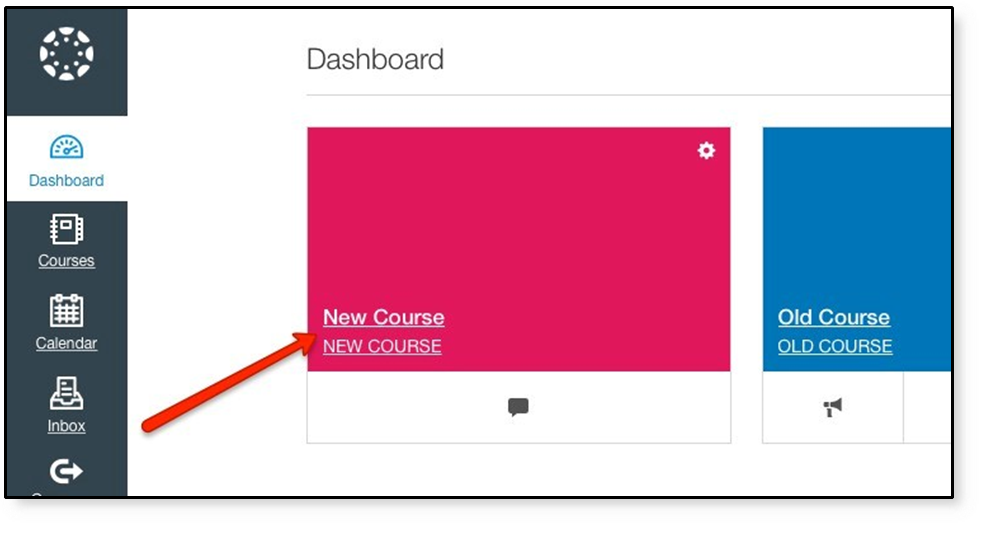
- In the course navigation menu on the left, click Settings
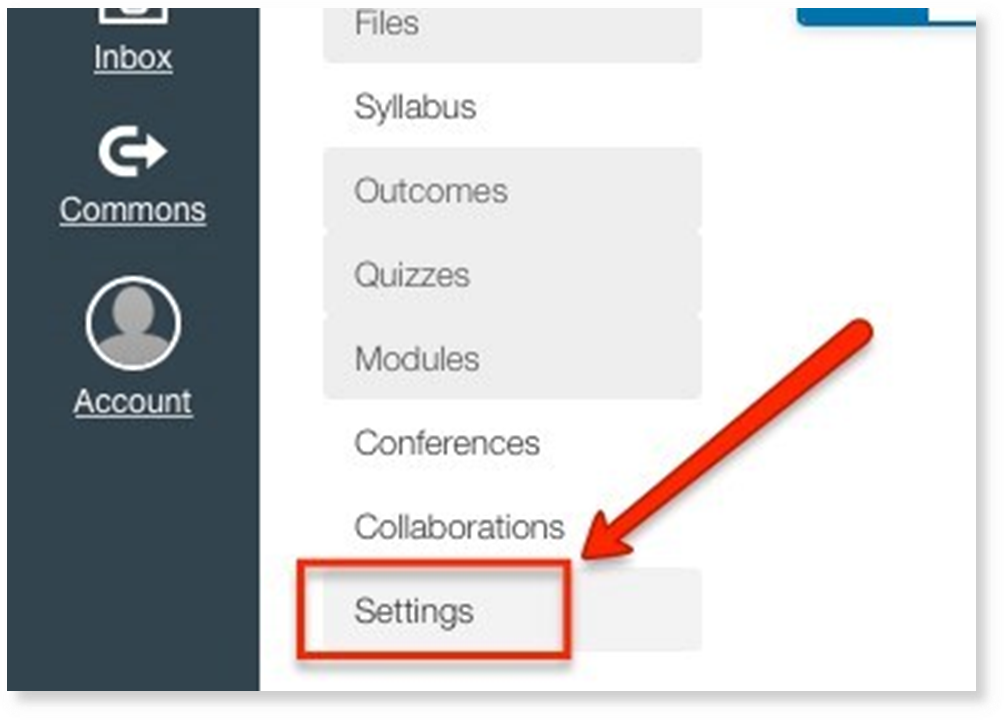
- In the list of commands on the right, select Import Course Content
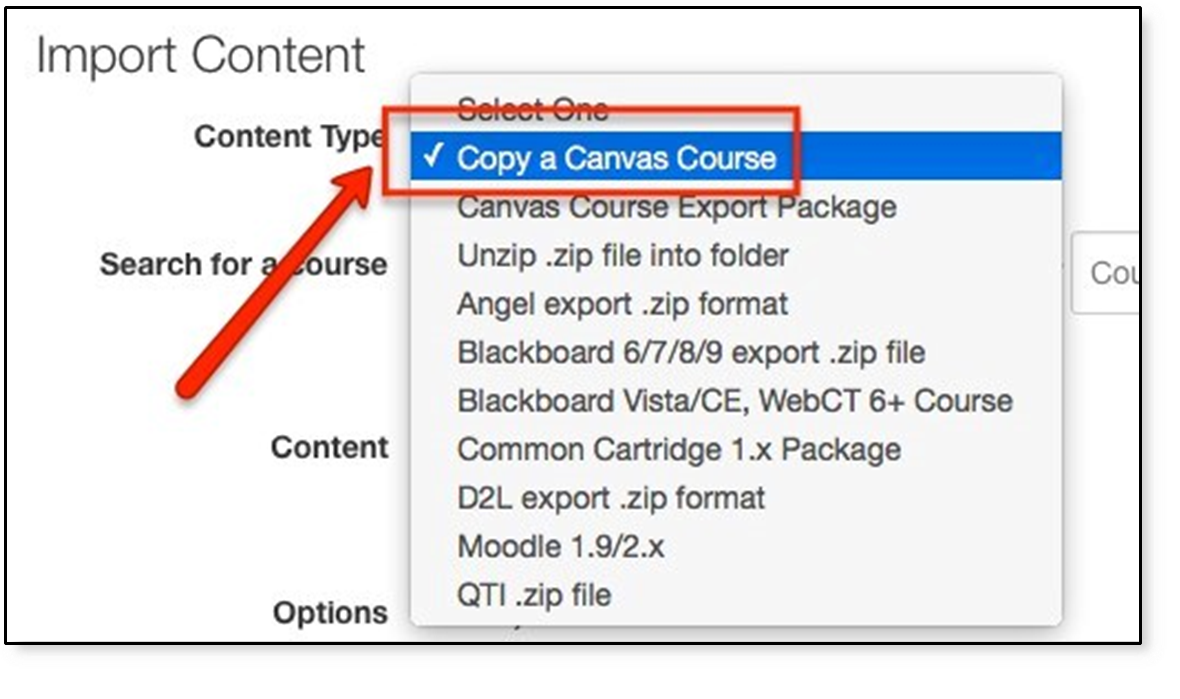
- From the "Content Type" list, select Copy a Canvas Course.
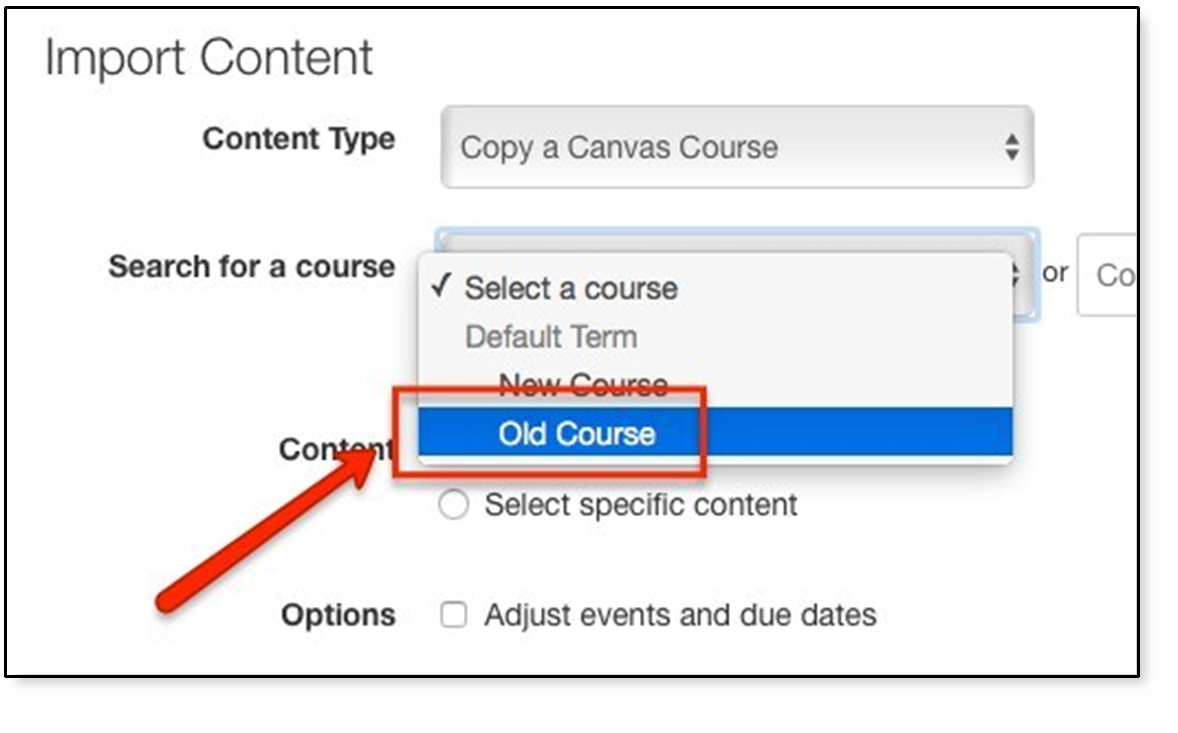
- From the "Search for a course" list, select the existing course that already has Norton digital learning tool links in it, or use the text box at the right to search for the course using a keyword.
- To copy all content from your existing course, use the All Content option to include all possible items (especially recommended if you've also loaded a Norton course pack for the book you're using)

- To copy only the Norton digital learning tools links, click the Select specific content option and go to step 9.

- Click the Import button.

- If you chose the "All Content" option, you'll see the status of the import under "Current Jobs".
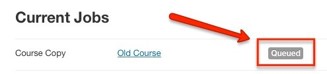

- If you chose the "All Content" option, you'll see the status of the import under "Current Jobs".
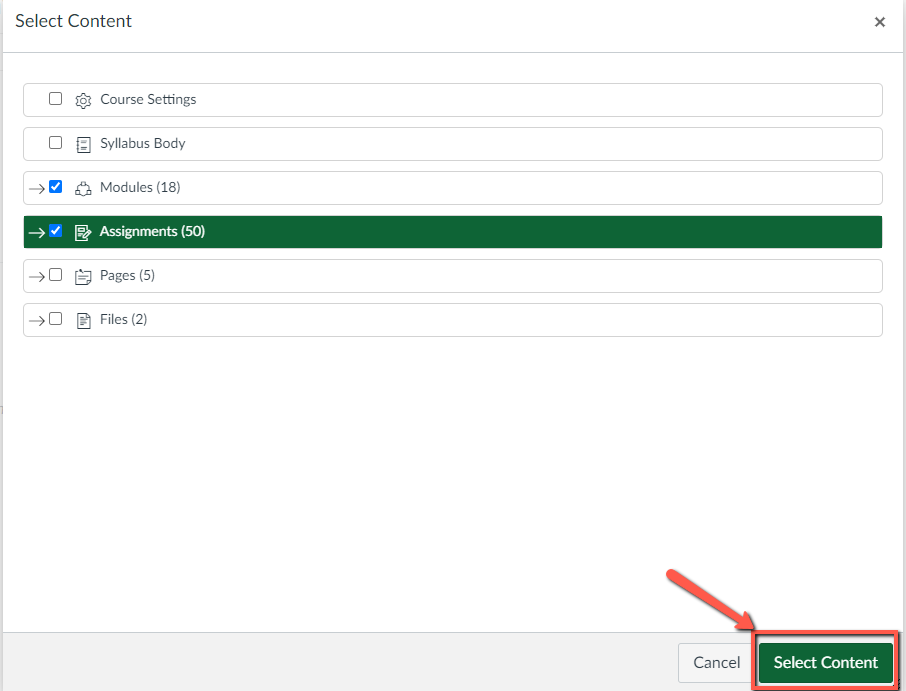
- If you chose "Select specific content", under "Current Jobs" click the Select Content button.

- In the "Select Content", click the boxes next to anything you wish to copy, as appropriate. Expand the list of content by clicking the arrow → next to Content items. Click the Select Content button at the bottom of the box to begin the import process. You'll see the status of the import under "Current Jobs” as in Step 8 above.
- Once you see "Completed" as the status under "Current Jobs," continue to the next section.
- Confirm the "W. W. Norton Learning Tools" (or similarly named) external tool:
- Go to course Settings, click the Apps tab, then click the View App Configurations button.
- If you see a W. W. Norton app without a lock icon, you should delete it, as that's an old 1.1 course level app

Pairing your LMS course to a new Norton course (student set)
- Do not complete this step until your Norton rep has confirmed that the 1.3 migration is complete. Once they have comfirmed, you can create your student set.
- Step to get you started can be found here: Create a Student Set.
New Users
We recommend waiting until the migration is complete to set up your course. You will then be able to use the Deep Linking Tool to set up your course with exactly the content you want. Instructions for using the deep linking tool can be found here: Canvas 1.3 LMS Integration with Norton Learning Tools