Note: Before launching a Norton link from a Moodle course, you must be enrolled in the course as an Instructor.
-
From your Moodle course, locate a link to the Norton tool (e.g., Ebook, Smartwork, InQuizitive, or Norton Illumine Ebook, etc.).
- Launch the link, the Norton activity will open in a new browser tab. If you are prompted to sign in use your Norton instructor account.
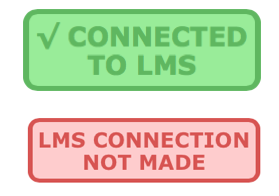
- On the Norton product page, confirm that you see a green badge labeled Connected to LMS. If instead you see a red LMS Connection Not Made badge, skip to Reporting error messages, below.

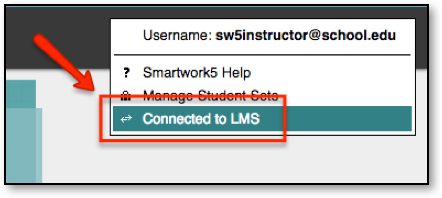
- If you’re using Smartwork or ZAPS individual activity links, the Connected to LMS notification appears in the user options menu, which you will see by clicking your username in the upper-right corner of the activity page.
- If you do not see Connected to LMS in the user options menu, skip to Reporting error messages, below.

Reporting error messages
Please take a screenshot and copy the text from the error message and contact W. W. Norton Customer Support for assistance. A support specialist will contact you to assist with further troubleshooting.