This document describes how to copy content from an existing course that has Norton digital learning tool links to a new course while retaining LMS integration with D2L for the links. Please consult your academic department administrator or campus IT helpdesk for details regarding specific course copy procedures for your department/campus.
Prerequisites:
- A D2L course shell for the new academic term,
- The name of the previous term's D2L course from which you want to copy Norton digital learning tool links.
Copy the current course's content into new course
- Navigate to the new course into which you would like to copy the Norton digital learning tools.
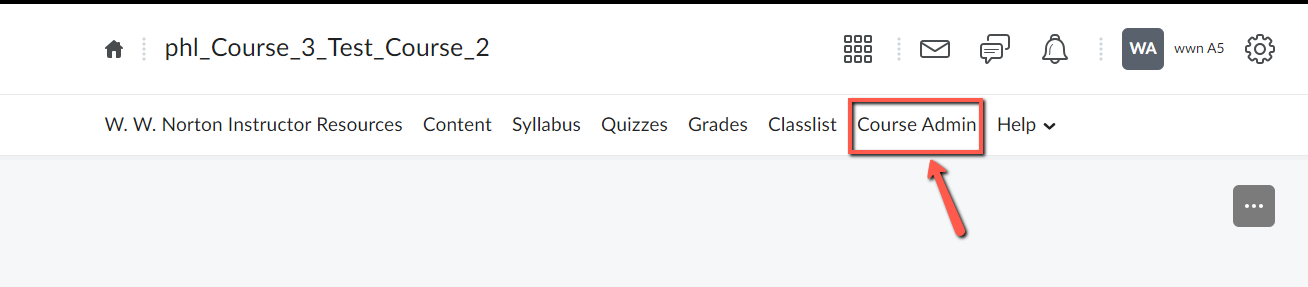
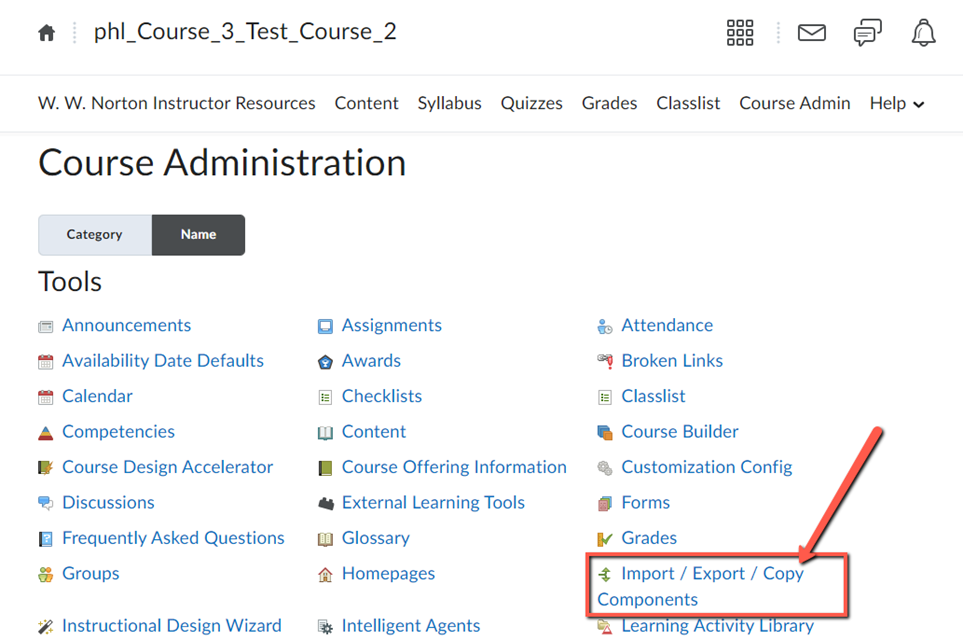
- In the navigation bar at the top of the page, select Course Admin, under Site Resources select Import / Export / Copy Components.
-
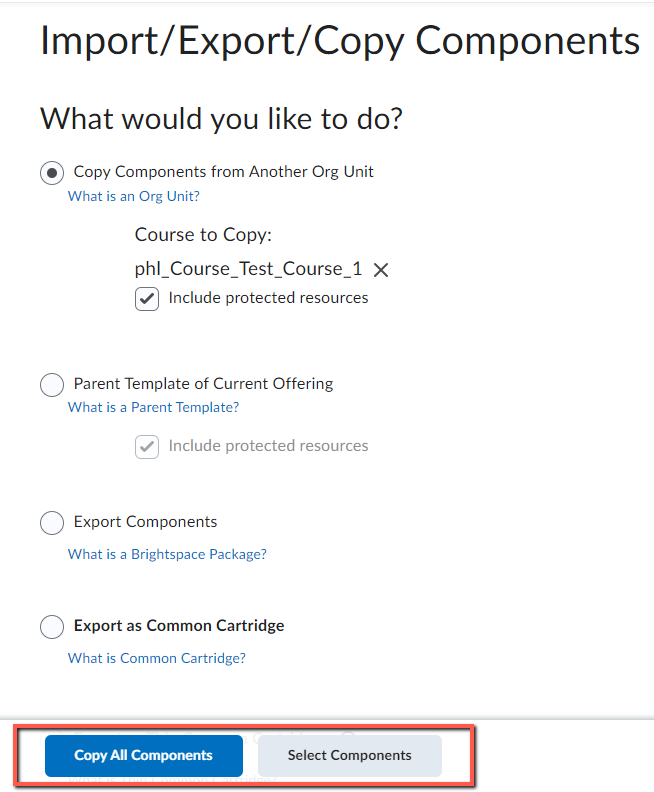
 On the Import/Export/Copy Components select Copy Components from Another Org Unit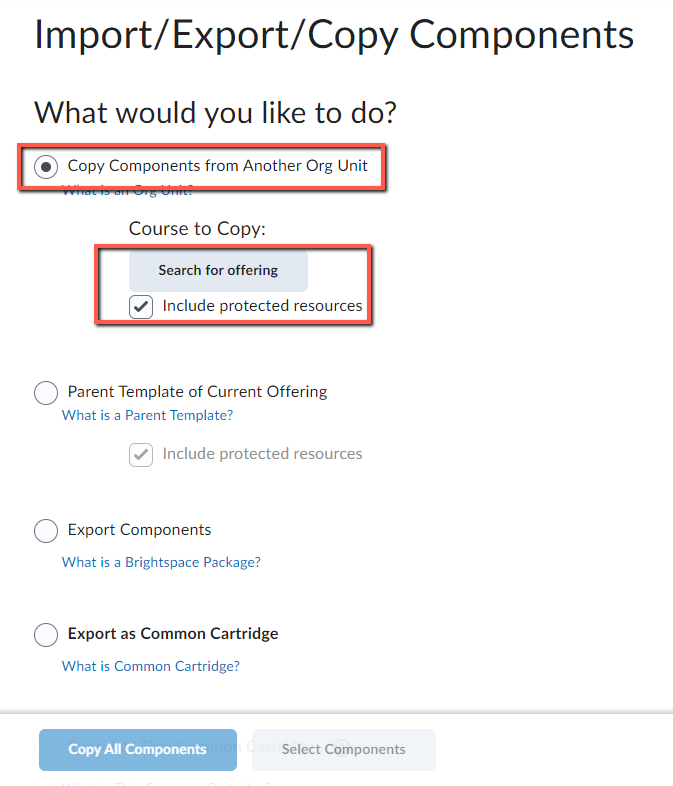
- Click on Search for offering
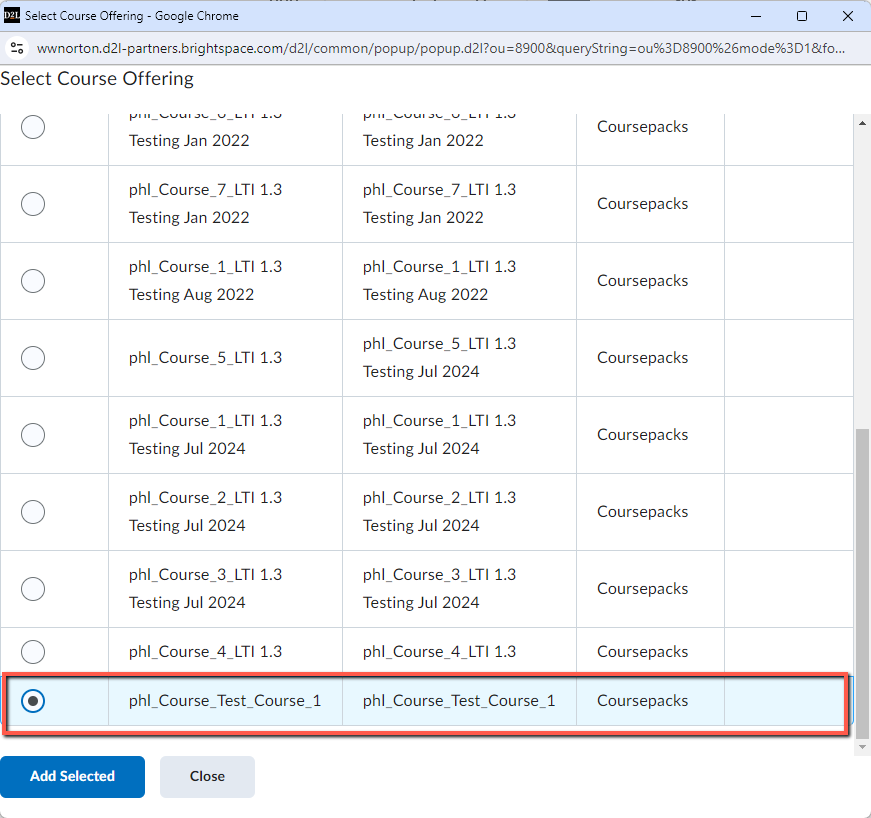
- A new window will open: Select Course Offering. Select the current course from which you would like to copy the Norton digital learning tools and click on Add Selected
- Select Copy All Components
- Wait while the system performs the copy. When copying is complete, click View Content to enter the course and confirm that all components were copied successfully.

- Confirm that the content area in which you have the Norton digital learning tool links exists and the links are present.
 On the Import/Export/Copy Components select Copy Components from Another Org Unit
Confirm content was copied
- Confirm that the content area in which you have the Norton digital learning tool links exists and the links are present.
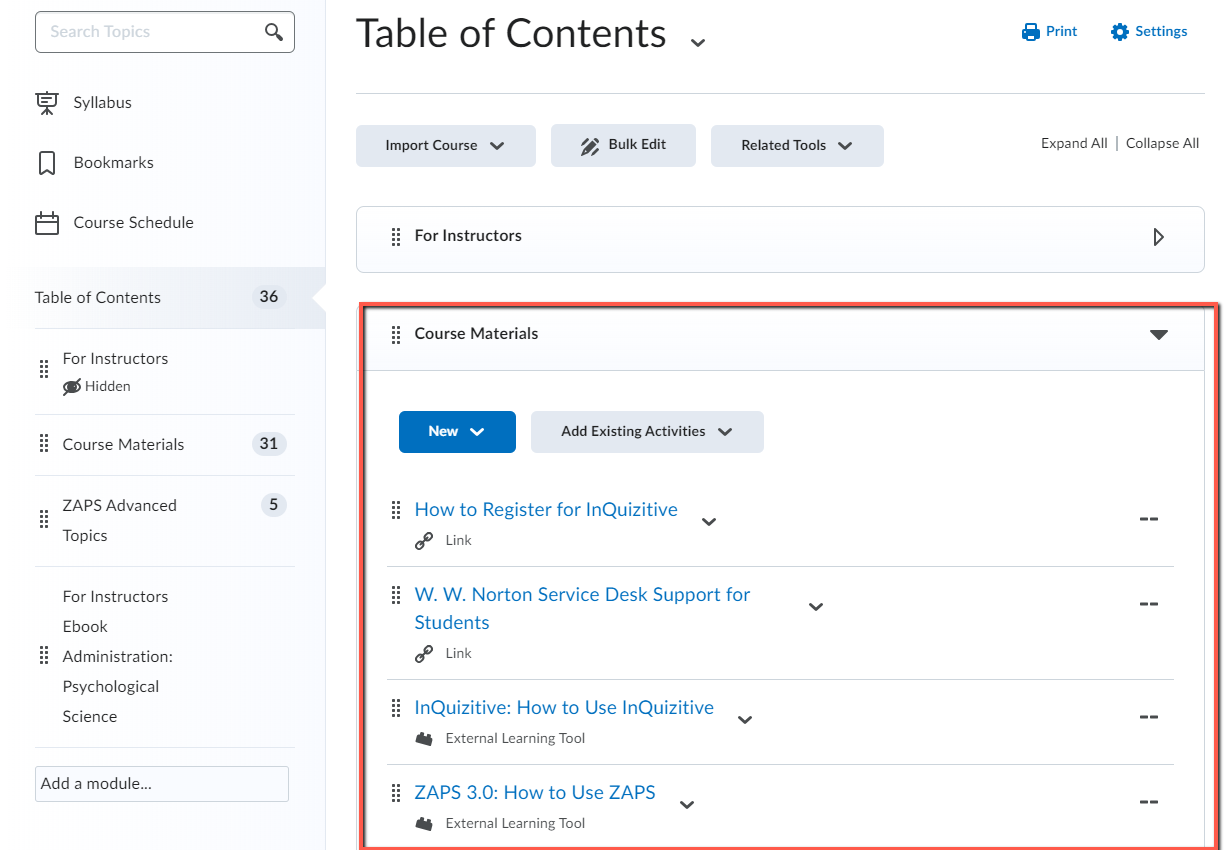
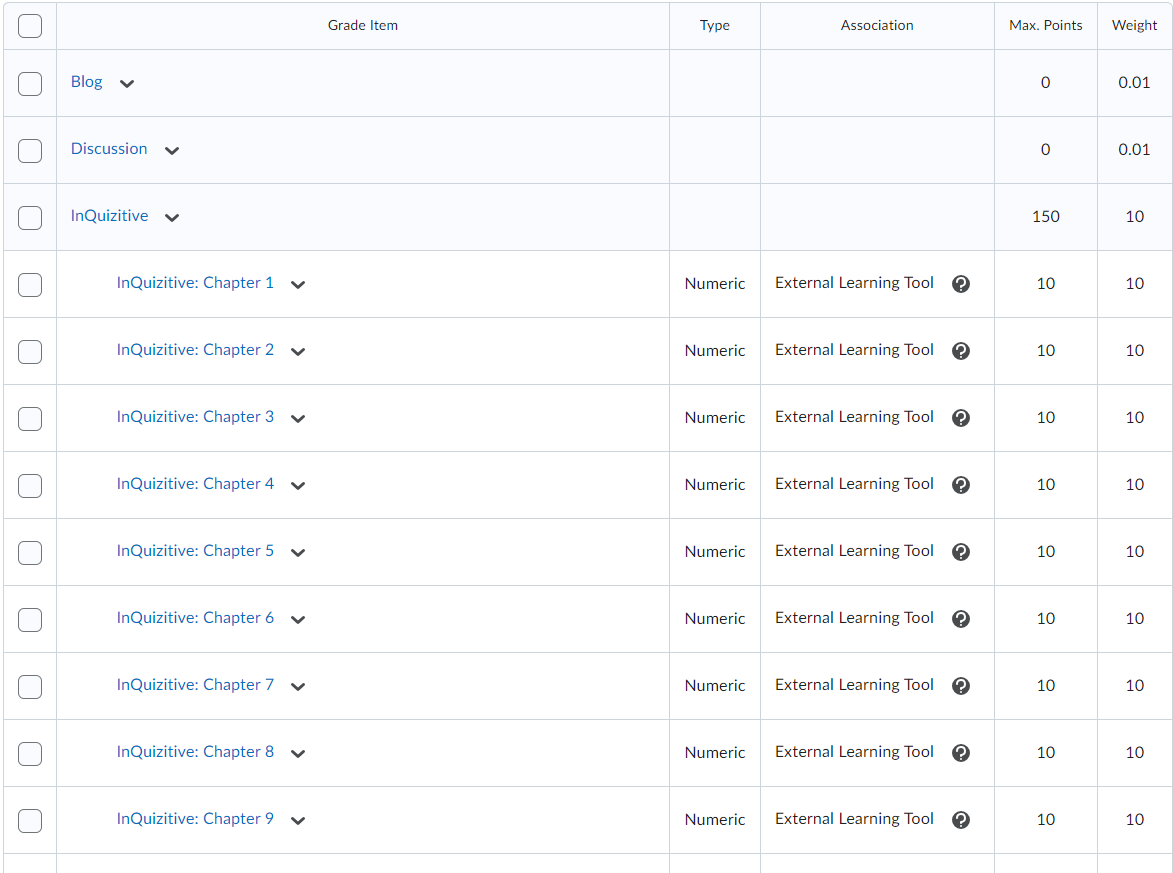
- Confirm in Grades the grade items exist for the External Learning Tool assignment links
- Click Grades
- Click Manage Grades
- Scroll down to find the External Learning Tool assignment links and the Maximum Point value assigned to the assignment link.
If you are copying links to an LTI 1.3 course, confirm all legacy tool links migrated to LTI Advantage links
- In the navigation bar at the top of the page, select Course Admin, under Site Resources select External Learning Tools
- Select the LTI Advantage tab
- Do the links exist in the LTI Advantage area of the External Learning Tools?
- If not select the Manage External Learning Tool Links tab
- Click the Migrate button
- If the Migrate button does not exist contact your LMS Admin and ask them to install the Migrate button
- If the Migrate button is present click it

- Select Yes if you have confirmed the course has been added to the External Learning Tool for the W. W. Norton Learning Tools, LTI 1.3

- When the migration is complete, select the LTI Advantage tab to confirm the links successfully migrated to the W. W. Norton Learning Tools LTI 1.3 Deployment

Next steps
If you haven’t already created a Student Set for your W. W. Norton product, you must do this to complete your course set up: Create a Student Set
Reporting error messages
Please take a screenshot and/or copy the text from the error message and contact W. W. Norton Customer Support for assistance. A support specialist will contact you to assist with further troubleshooting.